Share This Article
Hello there, friend! Cache here, your favorite tech savvy feline. When I am not taking sunny afternoon catnaps or chasing digital laser pointers, I spend my days guarding servers and sniffing out nasty bugs across the web.
Today we are diving straight into WordPress security 101 so you can keep your digital territory safe and sound.
Did you know that WordPress powers more than forty percent of all websites today? That is a whole lot of territory to defend. Because it is so popular, online troublemakers, automated bots, and scrapers love to target it. Just like an open window invites a sneaky neighborhood cat into your kitchen, a single weak password or outdated plugin invites hackers right into your website files.
Taking care of your site is not something you do once and forget. It is an ongoing habit, much like grooming your fur every single day. The good news is that mastering WordPress security 101 does not have to be scary or complicated. I am going to walk you through everything step by step so you can lock your doors, keep the malware out, and sleep peacefully at night.
1. Pick a Web Host That Actually Protects You
Your web host is the foundation of your entire digital home. In any lesson on WordPress security 101, hosting always comes first because a weak foundation puts your entire website in jeopardy.

When you share server space with other websites, poor hosting setups can allow trouble on another site to spill over into yours. That is why choosing a host that takes safety seriously is your very first line of defense.
Look for a hosting company that isolates user accounts completely. They should also provide a built-in web application firewall to block bad traffic before it ever touches your pages, along with automatic updates for their own server tools. A solid hosting provider gives your WordPress security 101 strategy the sturdy backbone it needs.
2. Lock Down Your Logins and Passwords
Let us talk about how you get into your website. Automated bot scripts love trying millions of password combinations every single minute. This is called a brute force attack, and stopping it is a huge part of WordPress security 101.
Say Goodbye to the Name Admin
Back in the old days, WordPress gave everyone a default username called admin. Hackers know this, so they immediately test passwords against that specific name. Create a brand new administrator profile with a unique name that nobody can easily guess, log in with it, and delete the old admin user completely.
Create Super Strong Passwords
I know it is tempting to use your pet name or your birthday, but please do not do it. Use a password manager to generate a long string of mixed letters, numbers, and symbols. The longer and more unpredictable it is, the harder it is for bots to crack.
Turn on Two Factor Authentication
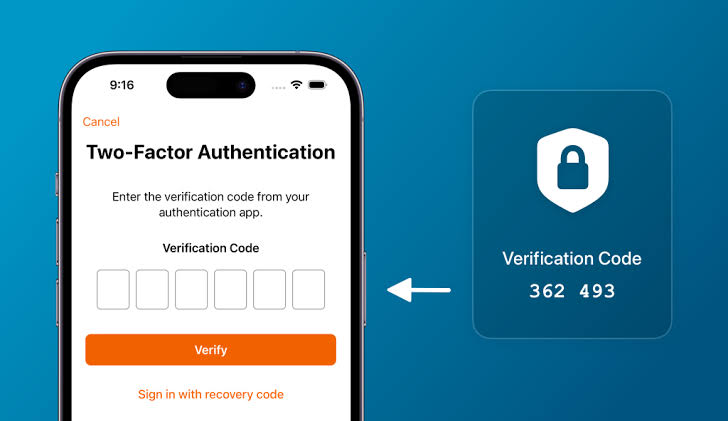
Two factor authentication is like having two separate keys for your front door. Even if a sneaky hacker manages to guess your password, they still cannot get inside without a special one-time code sent to your phone. It takes only a few minutes to set up and forms a vital pillar of WordPress security 101.
Limit Failed Login Tries
By default, WordPress lets visitors try passwords as many times as they want. You should set up a rule that locks people out for a little while after three to five failed tries. Once bots realize they cannot keep guessing endlessly, they usually give up and walk away.
3. Keep Everything Fresh and Updated
Imagine leaving a bowl of warm milk out on the porch for three weeks. It is going to attract unwanted pests, right? Outdated software does the exact same thing on the web.
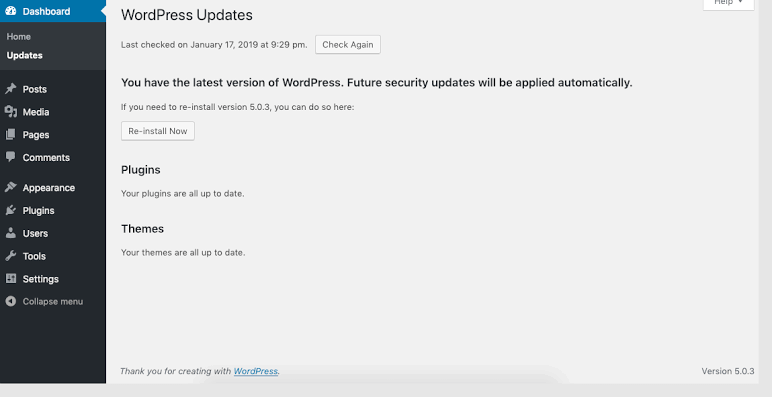
The vast majority of website break-ins happen because of known bugs in old plugins and themes. When developers find a safety gap, they patch it and release an update. If you do not update your site, you are leaving that door wide open for anyone to walk through.
Make it a weekly routine to check your dashboard. Keep your WordPress core files, your themes, and all your active plugins updated to their latest versions. If you have plugins sitting around that you do not use anymore, delete them completely. Removing old clutter is one of the easiest habits to learn in WordPress security 101.
4. Protect Your Important System Files
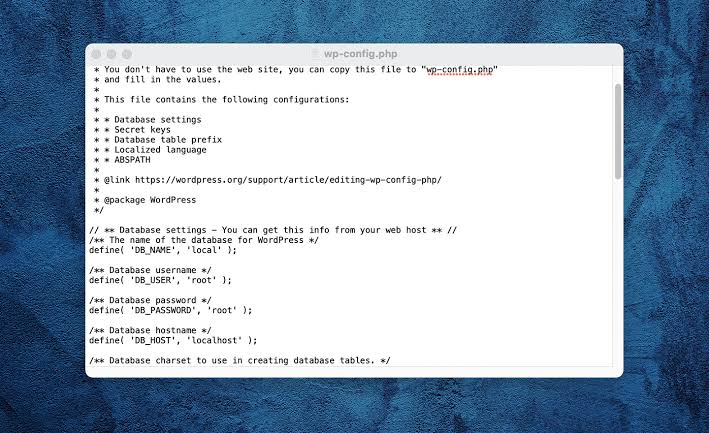
Deep inside your website folders sits a special file called wp config. This little file holds the keys to your entire database, your security salts, and your main setup details. We need to keep curious paws away from it.
Turn Off the Built-in File Editor
Inside your WordPress dashboard, there is an area that lets administrators edit theme and plugin code directly. While that sounds convenient, it is also a huge danger. If a bad actor ever gets into your dashboard, they can instantly paste malicious code into your theme.
You can turn this editor off completely by adding a simple line of protection inside your main configuration file. Once it is disabled, nobody can modify your code directly from the browser.
Keep Security Salts Fresh
WordPress uses secret keys called salts to keep your login sessions and cookies safely scrambled. If you ever suspect that someone had unauthorized access to your account, you can refresh these security keys. Doing that instantly signs everyone out across all devices and restores order.
5. Set Proper File Permissions
Every file and folder on your web server has a permission level that decides who is allowed to read it, write to it, or run it. If your permissions are too loose, anyone can alter your files.

As a golden rule of WordPress security 101, your folders should be set to safe read and write levels, while your files should be set so outside visitors can only read them. Your most sensitive files should be locked down even tighter so only the server itself can interact with them.
You should also block executable program code from running inside your uploads folder. Your uploads folder is meant for photos, illustrations, and videos, not raw program scripts.
6. Give Your Database an Extra Layer of Safety
Your database is where all your blog posts, comments, user profiles, and settings live. Protecting it is another essential chapter in our WordPress security 101 playbook.
Change the Table Prefix
When you first install WordPress, it names all your database tables with a standard prefix that starts with wp. Because this is the default setting, automated attack scripts look specifically for those standard table names to inject bad data. Changing this prefix to something custom during installation keeps those basic automated scripts guessing in the dark.
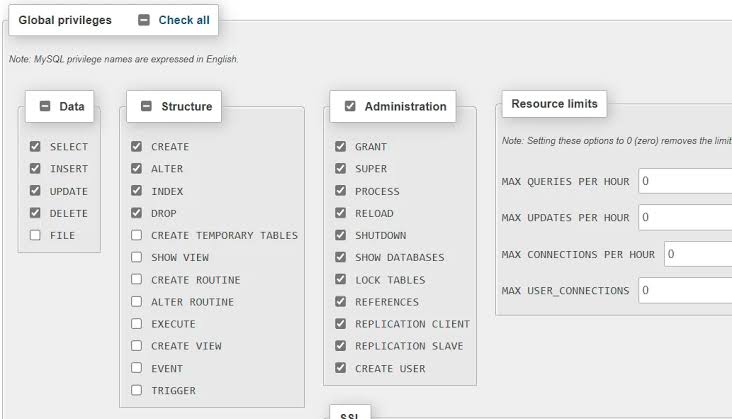
Use a Dedicated Database User
Never connect your website to your main server root account. Always create a unique user that only has permission to work on that single specific database. That way, even if a problem occurs, the rest of your server stays safe and untouched.
7. Turn Off Old Features You Do Not Need
Sometimes older features linger around even when you do not need them anymore. Two big examples are XML-RPC and author archive scans.
XML-RPC was created years ago so mobile apps and outside services could talk to your site. Today, modern tools use newer methods to connect. Leaving the old file active gives bots a way to test hundreds of passwords in a single request. Unless you use a specific plugin that relies on it, turning this feature off reduces unnecessary traffic and closes an old entry point.
You should also stop bots from scanning your author links. Bots love searching through user IDs to figure out your account names. When you block these scans, attackers have a much harder time figuring out who the real website owners are.
8. Use SSL and Modern Safety Headers
Have you ever noticed the little padlock icon in your browser address bar? That means the website is using an SSL certificate.
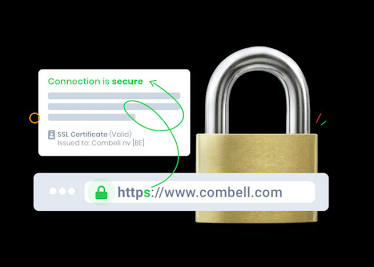
An SSL certificate encrypts all the data moving between your visitors and your server. This keeps credit card numbers, personal emails, and login details safe from anyone snooping on the network. Search engines also reward sites that use SSL with better visibility.
On top of SSL, you can enable modern safety headers. These are simple server instructions that tell a visitor browser how to behave safely. They prevent other sites from loading your pages inside hidden frames and stop scripts from loading from untrusted places.
9. Set Up Automatic Backups for Complete Peace of Mind
Even the most careful cat can occasionally knock a cup off the table. In the digital world, accidents happen, and brand new vulnerabilities can pop up before anyone has a fix ready.
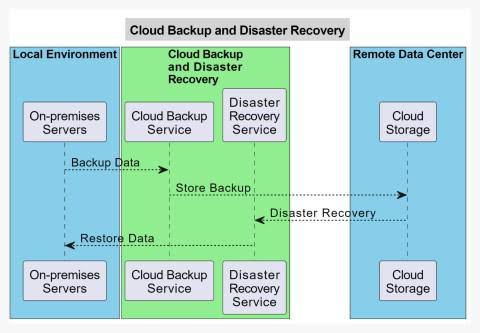
A clean, reliable backup is your ultimate safety net. Any seasoned guide to WordPress security 101 will tell you that backups are just as important as firewalls. If anything ever goes wrong, you can simply restore your website to a healthy state in just a few clicks.
Follow the simple three two one rule for backups:
- Keep three total copies of your website data
- Store your backups across two different storage methods
- Keep at least one backup entirely off site in secure cloud storage
Make sure your backups run automatically on a schedule that matches how often you publish new content.
Final Thoughts from Cache
Keeping your digital home safe does not require an advanced computer science degree. By understanding WordPress security 101, choosing great hosting, setting strong passwords, keeping everything updated, and scheduling regular backups, you put your site way ahead of most websites on the web.
Take it one small step at a time. Start with your passwords and updates today, and work your way down the list. Your website will be safe, your visitors will be protected, and you can get back to doing what you love most.
If you ever get stuck or have questions about keeping your files clean, just remember that your friendly neighborhood cat is always here cheering you on!
Frequently Asked Questions About WordPress Security
Got more questions about keeping your digital territory safe? Cache has gathered the most common questions website owners ask about WordPress security 101.
Can security plugins make my WordPress site completely hack proof?
No single tool or plugin can promise one hundred percent protection against every possible online threat. However, pairing a trusted security plugin with great hosting, unique login credentials, and consistent updates blocks the vast majority of automated attacks before they ever reach your core files. Think of a security plugin as a guard cat keeping a watchful eye on your hallways day and night.
What should I do right away if my website gets infected with malware?
If you suspect someone got into your website, take a deep breath and take action:
1. Put your website into maintenance mode so visitors stay safe.
2. Change every single password right away, including your main admin account, hosting portal, database, and FTP access.
3. Restore your site using a clean backup created before the issue started, or run a reputable malware scanner to clean out bad code.
4. Update all your plugins and themes to ensure old vulnerabilities are patched.
Does changing my login URL really help protect my website?
Changing your default login link hides the front door from basic bots that look for standard addresses. While it is a helpful extra layer that cuts down on annoying server spam, it is not a complete replacement for two factor authentication and strong passwords. You still need a sturdy lock even if the door is hidden behind a bush!
How often should I create backups of my site?
Your backup schedule should match how frequently you add new content or make sales. If you run an active store or post every day, automated daily or real time backups are best. If your site is a simple portfolio that changes once a month, a weekly automated backup works wonderfully. The golden rule is to always make sure you have at least one recent copy stored safely off site in the cloud.
Is it safe to leave deactivated plugins on my dashboard?
It is always safer to delete them completely. Even when a plugin is deactivated, its files remain on your web server. If an outdated file has an unpatched security hole, a clever attacker can still find ways to run it. If you are not using a tool, clear out the digital clutter!