Share This Article
Hey there friend, Cache here. As your favorite tech cat, I am excited to help you navigate how the internet translates human friendly website names into numeric server addresses. Imagine if you had to memorize a massive string of twelve random numbers every single day just to visit your favorite sites. Typing long numeric addresses into your browser just to run a quick search would make anyone want to drop their keyboard and run away.
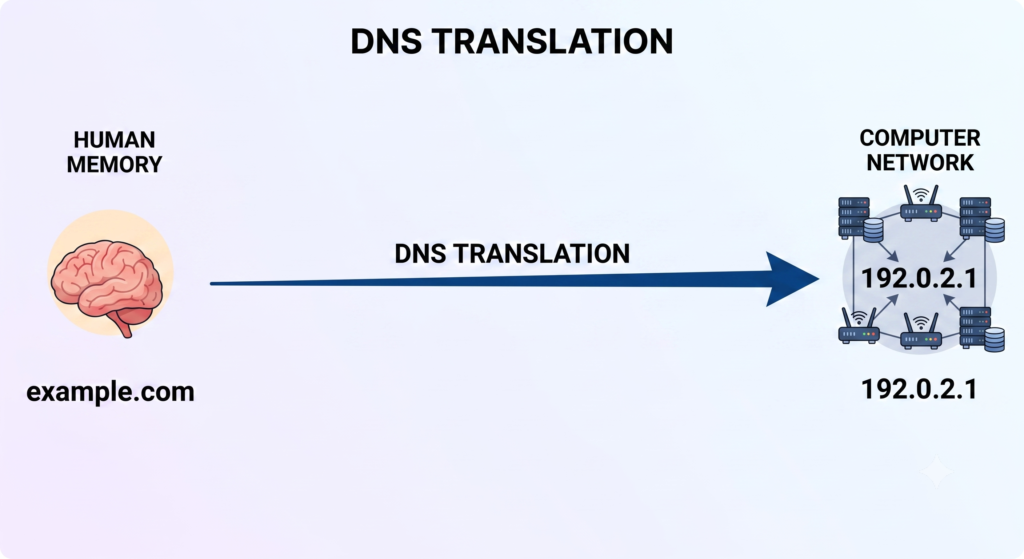
Luckily, that is where the Domain Name System comes into the picture to save the day. Humans understand names, while computers only understand IP addresses. Whether you are launching a brand new blog, setting up custom business emails, or managing web hosting, having DNS records explained clearly in this guide will help you prevent site downtime, fix email delivery issues, and keep your domain safe and secure.
DNS Records Explained: What is DNS and Why Does It Matter?
Luckily, that is where the Domain Name System comes into the picture to save the day! As your cat guide Cache, I can tell you that while we humans love friendly names, computers only understand numbers. Whether you are launching a brand new blog, setting up custom business emails, or managing web hosting, having DNS records explained clearly in this guide will help you prevent site downtime, fix email delivery issues, and keep your domain completely safe and secure.
Key Terms You Must Know:
Here are three key terms Cache wants you to know:
- Hostname: This is a specific label given to a device or server on a network. For example, in blog.example.com, the word blog acts as the hostname that directs traffic to that specific section of the server.
- Fully Qualified Domain Name (FQDN): This is the absolute and complete address of a web host on the internet. It combines the specific hostname with your main domain name to create one full location that points directly to your site.
- Nameserver: This is a specialized server dedicated to holding your domain zone files. Its main job is to listen for incoming requests and give out the correct IP addresses for your website records.
How Does DNS Work? (The 4-Step DNS Lookup Process)

When you type a URL into your browser, a process called a DNS lookup happens in a fraction of a second, moving fast like Cache chasing a laser pointer! Here is how it works:
The Step-by-Step Resolution Path:
Here is the step-by-step resolution path Cache mapped out to show how your request travels across the web:
- The Request: When you enter a web address, your browser first checks its own local cache memory. If the address is not saved there, it sends a query to a Recursive Resolver, which is a specialized server usually managed by your internet service provider or public options like Google DNS. The resolver’s job is to act as a messenger and hunt down the correct IP address for you.
- Root Server Query: The recursive resolver reaches out to one of the 13 global Root Servers. The root server does not know the exact IP address of your website, but it reads the end of your web address (like
.com,.org, or.net) and points the resolver to the correct Top-Level Domain registry server. - TLD Server Lookup: Next, the resolver contacts the Top-Level Domain (TLD) Server responsible for that specific domain extension. The TLD server manages the directory for all domains under that extension and replies with the location of your domain’s designated Authoritative Nameserver.
- Fetching Authoritative Nameservers: The resolver uses that information to query your domain’s specific Authoritative Nameserver. This is the master server that actually stores your domain zone files and holds the ultimate source of truth for all your DNS records.
- IP Address Return: The authoritative nameserver reads its zone records, finds the exact matching IP address, and hands it back to the recursive resolver. The resolver saves a temporary copy in its cache memory for speed and delivers the IP address back to your browser, which instantly connects to your hosting server and loads your website pages.
Forward Lookup vs. Reverse Lookup
Here is how Cache breaks down the difference between Forward and Reverse DNS Lookups:
- Forward DNS Lookup: This is the standard lookup used during everyday web browsing. It takes a human-friendly domain name and translates it into a numeric IP address so your browser can locate and load the website server.
- Reverse DNS Lookup: This process does the exact opposite by taking an IP address and searching the DNS to find the domain name attached to it. Mail servers rely heavily on reverse lookups to verify the identity of senders and block unwanted spam emails.
What Are DNS Records?
A DNS record is an individual instruction stored inside a database on an authoritative DNS server. These records act as explicit directional markers that tell the rest of the internet exactly how to route traffic, messages, and services for your domain name.
To make this super simple, Cache likes to compare your domain name to a central distribution hub:
- Website Traffic: One specific record acts as a green light, directing any visitor who types your URL straight to the server IP where your website files live.
- Email Messages: Another record serves as an address label for your inbox, sending incoming mail directly to your designated email provider.
- Domain Security: Specialized text records work like digital identity checks, proving to search engines and security systems that you are the legitimate owner of the domain.
What is DNS Propagation Time and TTL?
Every DNS record includes an essential setting called TTL (Time to Live), which acts as a timer specifying how many seconds recursive resolvers and internet service providers are allowed to save or cache that record before asking your authoritative nameserver for a fresh update.
When you edit or add a new record, the updates do not show up across the entire globe instantly. DNS Propagation is the mandatory grace period required for global DNS caches and internet providers to flush out old cached data and store your new settings.
Cache breaks down how TTL and propagation work together:
Global Propagation Window: Because thousands of intermediate DNS servers update their caches at different times based on old TTL expirations, full global propagation usually takes anywhere from 2 to 48 hours to complete.
Short TTL Values: Setting a lower TTL (like 300 seconds or 5 minutes) before making server changes ensures internet providers check for updates more frequently, which speeds up total propagation.
Long TTL Values: Setting a higher TTL (like 86400 seconds or 24 hours) reduces network load on your nameserver and improves site speed for returning visitors, but it means DNS updates will take longer to spread.
7 Key Types of DNS Records Every Web Owner Needs
To manage your website smoothly, Cache wants you to know that you do not need to memorize every complicated network protocol out there. As we have these 7 key DNS records explained, you only need to master these primary types:
- 1. A Record (Address Record): This is the core foundational record of the internet. It maps your domain name or subdomain directly to a 32-bit IPv4 address like 192.0.2.1.
- Host or Name: Setting this to
@represents your root domain like example.com, whilewwwsets up your web address prefix. - Value: The numerical IPv4 address supplied by your web host.
- Primary Function: Directs anyone typing your web address straight to the physical server hosting your site.
- Host or Name: Setting this to
- 2. AAAA Record (IPv6 Address Record): Also known as a Quad-A record, this functions just like an A record but connects your domain to a much longer 128-bit IPv6 address like 2001:db8::1.
- Why It Is Needed: The world officially ran out of unassigned IPv4 combinations. IPv6 accommodates over 340 undecillion unique addresses, ensuring long-term network growth for modern internet devices.
- 3. CNAME Record (Canonical Name): A CNAME record acts as an alias that points one subdomain or nickname to another domain name instead of a numerical IP address.
- Example: Pointing blog.example.com directly to your main domain example.com.
- Cache’s Pro Tip: If your hosting server IP changes down the line, you only have to edit your single main A record. All subdomains configured as CNAMEs will update automatically.
- 4. MX Record (Mail Exchange): An MX record tells global mail servers where to route incoming emails sent to your domain address, such as support@yourdomain.com.
- Priority Value: MX records use priority numbers like 5, 10, or 20. Lower numbers carry top priority. If the mail server at priority 5 is unreachable, the sending server automatically fails over to priority 10.
- 5. TXT Record (Text Record & Email Security): A TXT record lets domain owners attach machine-readable text notes to their domain zone files. These are primarily used for site verification and protecting your reputation against email spammers.
- SPF (Sender Policy Framework): A specific TXT record that lists which mail servers are authorized to send emails on behalf of your domain name.
- DKIM (DomainKeys Identified Mail): Adds a cryptographic digital signature to outgoing messages, proving to receiving inboxes that your emails were not forged or altered in transit.
- 6. NS Record (Name Server Record): NS records declare which authoritative nameservers hold and manage the active DNS zone files for your domain. Every domain requires at least two NS records so your site stays reachable if one nameserver encounters an issue.
- 7. CAA & SRV Records: These two specialized records handle security and custom server connections.
- CAA Record (Certification Authority Authorization): Declares which specific Certificate Authorities, like Let’s Encrypt or DigiCert, are allowed to issue SSL certificates for your domain name.
- SRV Record (Service Record): Defines designated port numbers and host locations for custom communications, including VoIP calls, instant messaging, or online multiplayer game servers.
Quick Comparison: 7 Primary DNS Record Types
Having these DNS records explained in a side-by-side view helps you see their core roles instantly:
| Record Type | Translates From | Translates To | Primary Function |
| A Record | Domain Name | IPv4 Address | Directs site traffic to web hosting |
| AAAA Record | Domain Name | IPv6 Address | Next-generation IP routing |
| CNAME Record | Subdomain | Domain Name | Creates alias addresses |
| MX Record | Email Address | Mail Server | Routes incoming email messages |
| TXT Record | Domain Name | Text String | Verifies ownership, SPF & DKIM |
| NS Record | Domain Name | Nameserver | Specifies authoritative DNS zone |
| CAA Record | Domain Name | Approved CA | Authorizes SSL certificate issuing |
Static DNS vs. Dynamic DNS Explained
When configuring your network or server settings, Cache wants you to know that you will encounter two different ways IP addresses are handled: Static DNS and Dynamic DNS (DDNS).
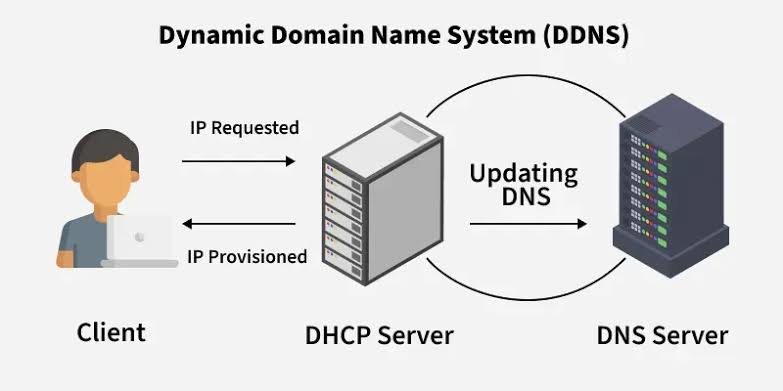
To help you decide which setup fits your needs, Cache broke down the main differences in this simple comparison:
| Feature | Static DNS | Dynamic DNS (DDNS) |
| IP Address Assignment | Assigns a fixed, permanent IP address that never changes unless you manually update it. | Assigns a rotating IP address that changes periodically based on your internet provider. |
| Best Used For | Professional business websites, e-commerce stores, and permanent web hosting servers. | Home-hosted web servers, security camera systems, and remote desktop connections. |
| Record Maintenance | Requires manual edits in your DNS dashboard whenever your hosting server IP shifts. | Uses a background client application to update your DNS records automatically in real time. |
| Network Reliability | Provides maximum stability, minimal lookup delays, and predictable uptime for visitors. | Prone to brief periods of downtime or caching delays whenever your IP address updates. |
Which One Should You Choose?
- Choose Static DNS: If you are running a public website, blog, or online store. A fixed IP address ensures recursive DNS resolvers across the world always know exactly where to find your server files.
- Choose Dynamic DNS: If you are hosting a personal server or security camera from your home network. Most residential internet service providers assign dynamic IP addresses, so a DDNS service ensures your domain name stays connected to your home network even when your ISP changes your IP address.
Where Can You Find and Edit Domain DNS Records?
To manage or edit your DNS records, Cache wants you to know the most important golden rule first: you must log into the account controlling your active Nameservers.
Depending on how you set up your domain and web hosting, your DNS control panel will be located in one of three places:
- Domain Registrar Dashboard: If you are using default nameservers from the company where you registered your domain, log into your registrar account (such as Namecheap, GoDaddy, or Hostinger). From there, navigate to Dashboard > Domain List > Advanced DNS or Zone Editor.
- Web Hosting Control Panel: If you changed your nameservers to point directly to your hosting provider, your DNS records are managed inside your web host’s control panel. Log into your hosting account and look for cPanel > DNS Zone Manager or DNS Zone Editor.
- Third-Party DNS Service: If you use a third-party performance or security service like Cloudflare, your domain authority is managed entirely through them. Log into your Cloudflare dashboard and manage your entries directly under the DNS > Records tab.
While free DNS provided by your domain registrar or Cloudflare works fantastically for most website owners, Premium DNS is an upgraded paid service designed for mission-critical web applications.
Cache broke down the core features that set Premium DNS apart:
- Global Anycast Network: Instead of relying on a few server locations, Anycast routes your visitors’ DNS requests to the physically closest data center anywhere in the world. This drastically reduces lookup latency and speeds up your site load times.
- Advanced DDoS Mitigation: Built-in security layers shield your authoritative nameservers from massive DNS flood attacks that attempt to overwhelm your domain and knock your website offline.
- Automatic Failover & 100% Uptime SLAs: Premium providers use secondary backup nameservers and automatic health monitoring. If a primary server goes down, traffic is immediately rerouted to a healthy backup server without dropping your site.
Cache’s Final Recommendation
Upgrade to Premium DNS: If you operate a high-traffic e-commerce store, a SaaS platform, or an enterprise brand where even five minutes of downtime leads to lost revenue, investing in Premium DNS is a smart move.
Stick with Free DNS: If you run a personal blog, small business site, or informational page, free DNS from your registrar or Cloudflare’s free plan provides more than enough performance, speed, and safety.
Conclusion
Understanding DNS records explained in this guide is an essential step toward running a fast, secure, and reliable website. By taking the time to ensure your A, CNAME, MX, and TXT records are configured properly, you guarantee that your visitors reach your site smoothly and your emails always land right in the inbox.
Cache hopes this guide made managing your domain settings feel effortless. Take a quick look at your domain account today to confirm your email authentication and address records are set up correctly!